If you use Trello to manage client projects, you probably have a list called "Invoicing" or "Ready to bill". Moving a card there means it's time to create an invoice. Why not automate that? In this tutorial, you'll connect Trello to an invoicing tool (FreshBooks, Stripe, or even Google Sheets) and send a notification to your client – all without code.
What You'll Need (All Free Tiers)
- Trello – to manage your project tasks.
- An invoicing tool – FreshBooks (free trial), Stripe Invoicing, PayPal, or even Google Sheets (for manual tracking).
- Zapier or Make – to connect Trello to your invoicing tool.
- Email (optional) – to send a copy of the invoice to the client.
Step 1 – Set Up Your Trello Board
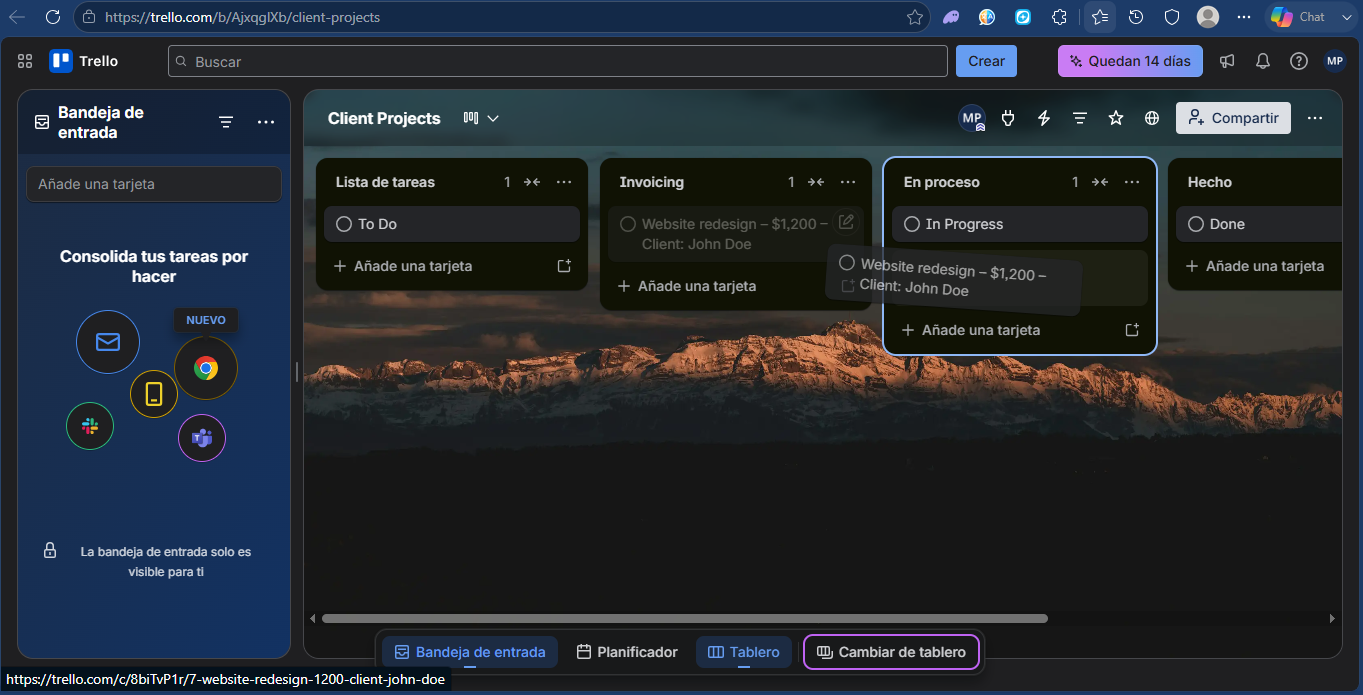
- Create a board called "Client Projects".
- Add lists: "To Do", "In Progress", "Invoicing", "Done".
- Create a sample card with fields: Client Name, Email, Amount, Project Description (you can use custom fields, but for simplicity, use the card description or labels).
Step 2 – Prepare Your Invoicing Tool
Option A: FreshBooks (recommended for affiliate income)
– Sign up for a free FreshBooks trial.
– Create a product/service called "Freelance Project".
– Note your API key (or use Zapier's native integration).
Option B: Stripe Invoicing
– Activate Stripe Invoicing.
– Create a draft invoice template.
Option C: Google Sheets (free, no API key)
– Create a Google Sheet with columns: Client, Email, Amount, Due Date, Status.
– Use the sheet as a simple invoice log (not auto‑generated PDFs, but good for tracking).
Step 3 – Build the Automation (Using Zapier)
- Log in to Zapier and create a new Zap.
- Trigger: Trello – "Card moved to list". Select your board and the list "Invoicing".
- Action: FreshBooks – "Create invoice". Map the card name (e.g., "Project: [Card Name]") as the invoice description, amount from the card description or custom field, client email from card description.
- Second Action (optional): Gmail – "Send email". Compose an email to the client with the invoice link.
- Test the Zap and turn it on.
Alternative: Using Make (Integromat)
Make offers a more visual builder and a generous free tier. The steps are similar:
- Trigger: Trello "Watch cards" (filter by list name).
- Add a router: one branch creates invoice (FreshBooks/Stripe), another branch moves the card to "Done" after invoicing.
- Add a filter: only proceed if card has amount > 0.
Customization Ideas
- Use Trello custom fields – Store amount, due date, and client email directly on the card for cleaner mapping.
- Add a delay – Wait 1 day after moving card to "Invoicing", then send a reminder if invoice isn't paid.
- Create a PDF invoice – Use Google Drive to generate a PDF from a template and attach it to the email.
- Log to Google Sheets – Keep a backup of all invoices generated.
Pricing & Limitations
- Trello free – Unlimited cards, 10 boards. Enough for most freelancers.
- FreshBooks free trial – 30 days. Paid plans start at $15/month.
- Stripe Invoicing – 0.4% per invoice (capped at $2). No monthly fee.
- Zapier free – 100 tasks/month, 5 Zaps. For light invoicing, it's enough.
- Make free – 1,000 operations/month, 2 scenarios. Very generous.
Conclusion – Stop Manual Invoicing
This automation eliminates the risk of forgetting to bill a client. Every time you finish a project, just move the Trello card to "Invoicing" – and the rest happens automatically. Start with a simple Zap, then add complexity as you grow.
Try the tools for free:
Trello free →
FreshBooks free trial →
Zapier free →
Make free →