Every day, you receive invoices, signed contracts, client briefs, and other important attachments via email. Manually downloading each one and saving it to the right folder is tedious and easy to forget. In this tutorial, you'll set up an automation that saves Gmail attachments directly to Google Drive – instantly, without lifting a finger.
What You'll Need (All Free Tiers)
- Gmail – your email account.
- Google Drive – to store attachments.
- Zapier or Make – to connect Gmail and Drive.
Step 1 – Prepare Your Google Drive Folders
- Create a folder in Google Drive named "Email Attachments".
- Inside, create subfolders if you want to sort by sender or project (e.g., "Invoices", "Contracts", "Client Briefs").
- Take note of the folder IDs (the string after
https://drive.google.com/drive/folders/).
Step 2 – Build the Automation (Using Zapier)
- Create a new Zap.
- Trigger: Gmail – "New attachment".
- Connect your Gmail account and choose a label (e.g., "Invoices" or "Important").
- Test the trigger to fetch a sample email with an attachment.
- Action: Google Drive – "Upload File".
- Connect your Google Drive account and select the folder where you want to save attachments.
- Map the attachment content and file name from the Gmail trigger.
- Optional: Add a second action – "Create File from Text" to save a summary of the email (date, sender, subject) as a text file alongside the attachment.
- Test and turn on the Zap.
Alternative: Using Make (Integromat)
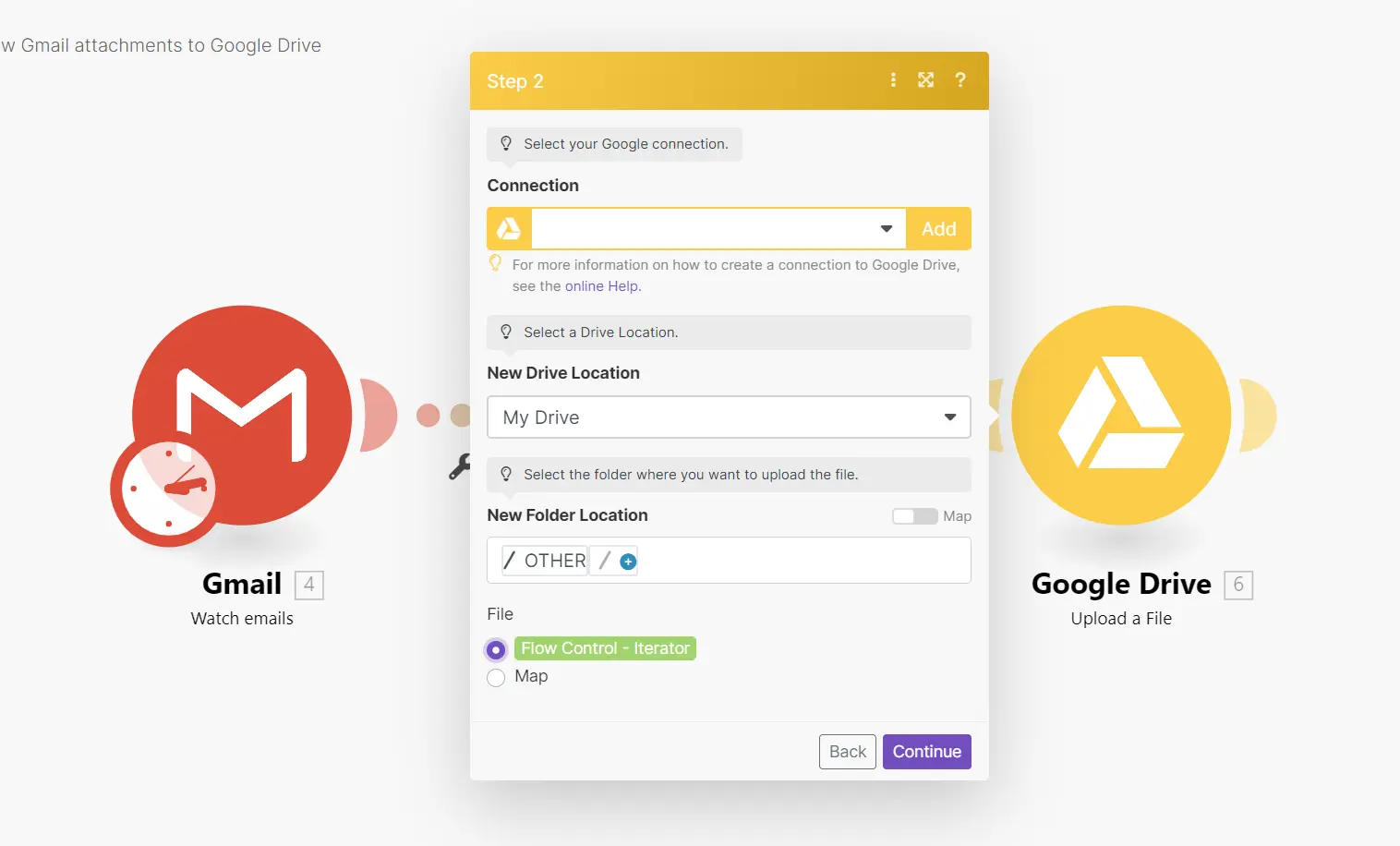
Make offers more flexibility, such as filtering by file type (e.g., only save PDFs) or renaming attachments based on email subject. The steps are similar:
- Trigger: Gmail – "Watch emails".
- Filter: only proceed if email has attachments.
- Iterator: loop through each attachment.
- Google Drive – "Upload a file".
Advanced Customization Ideas
- Sort by sender – Use a router to save attachments from different senders into different Drive folders.
- Rename files – Use the email subject or date to rename the attachment (e.g., "2026-06-11_invoice.pdf").
- Add a database entry – Also create a record in Airtable or Notion with a link to the Drive file.
- Scan for viruses – Before saving, integrate a virus scanner (advanced).
Pricing & Limitations
- Zapier free – 100 tasks/month, 5 Zaps. Each attachment counts as one task.
- Make free – 1,000 operations/month, 2 scenarios. Great for testing.
- Gmail free – 15GB storage (shared with Drive).
- Google Drive free – 15GB storage. Upgrade if needed.
Conclusion – Never Lose an Important Document Again
This automation ensures every invoice, contract, or brief you receive is automatically backed up to an organised Drive folder. No more scrambling to find that one PDF from three months ago.
Try the tools for free:
Zapier free →
Make free →
Google Drive (free) →
Gmail (free) →