If you use Google Calendar for meetings and deadlines, but Notion for project tracking, you've likely faced the problem of duplicate data entry. In this tutorial, you'll set up a two‑way (or one‑way) sync between Google Calendar events and a Notion database – no code required.
What You'll Need (All Free Tiers)
- Google Calendar – your existing calendar.
- Notion – a database to store events (e.g., "Client Deadlines").
- Zapier or Make – to connect the two tools.
Step 1 – Prepare Your Notion Database
- Create a new page in Notion and add a database (Table view). Name it "Calendar Sync".
- Add properties:
- Name (title) – event summary.
- Date (date) – event start time.
- End Date (date) – optional.
- Description (text) – event description.
- Link (URL) – link to the Google Calendar event.
- Copy the database ID (from the URL: notion.so/...?v=...). You'll need it later.
Step 2 – Set Up the Automation (Using Zapier)
- Create a new Zap.
- Trigger: Google Calendar – "Event started" or "New event".
- Connect your Google Calendar account and select the calendar you want to sync.
- Action: Notion – "Create Database Item".
- Connect Notion and select your database.
- Map the Google Calendar fields: Summary → Name, Start time → Date, Description → Description, HTML link → Link.
- Test and turn on the Zap.
Alternative: Two‑Way Sync (Add events from Notion to Google Calendar)
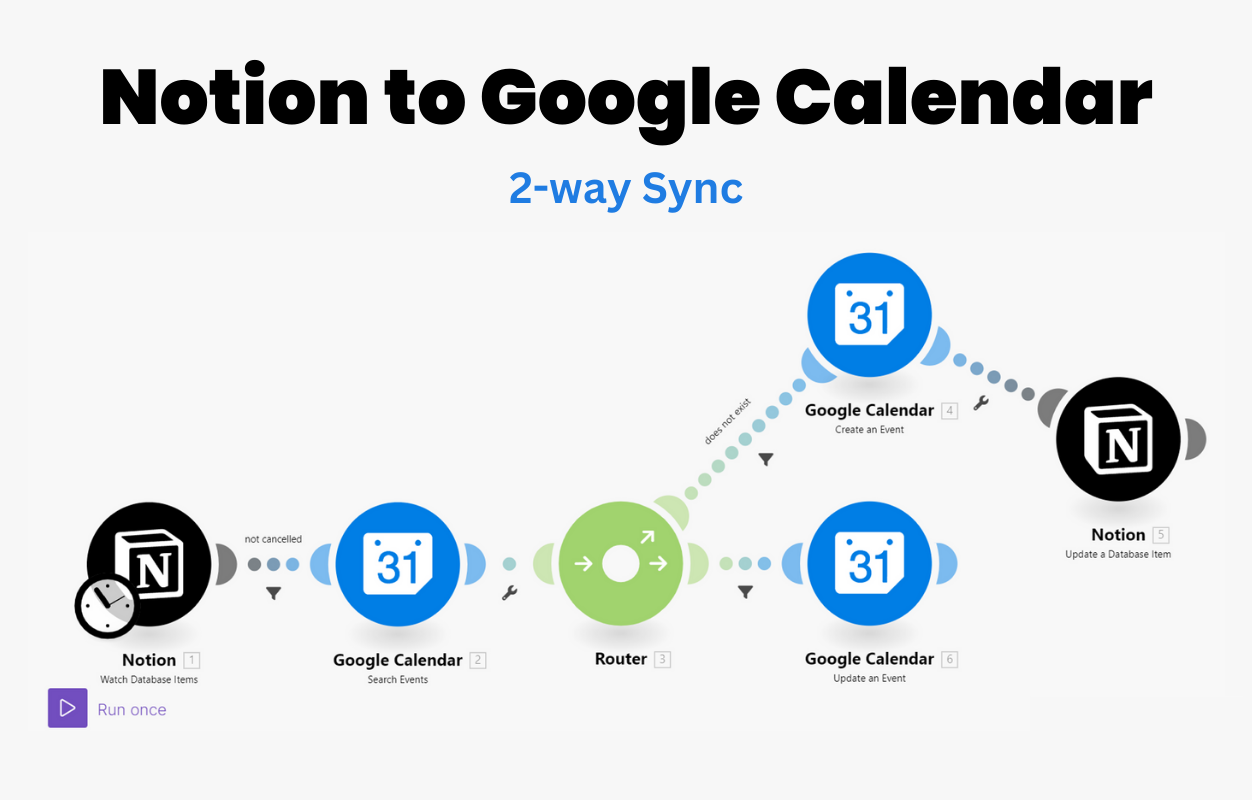
You can also do the reverse: when you add a new item in your Notion database (e.g., a task with a due date), create a corresponding event in Google Calendar. For that, use:
- Trigger: Notion – "New Database Item".
- Action: Google Calendar – "Create Quick Event" or "Create Detailed Event".
This is useful for turning Notion tasks into calendar blocks.
Using Make (Integromat) for Advanced Logic
Make offers more flexibility, e.g., only sync events from calendars with a specific keyword, or update existing Notion pages instead of creating duplicates. The module setup is similar: Google Calendar → Notion, with filters and routers.
Customization Ideas
- Filter by calendar name – only sync "Client Meetings", not personal events.
- Add a delay – sync events created in the last 24 hours only.
- Sync both ways – create a loop (careful not to create infinite sync).
- Use Notion's calendar view – after sync, you can visualise all client deadlines inside Notion.
Pricing & Limitations
- Zapier free – 100 tasks/month, 5 Zaps. Enough for light syncing (e.g., ~3 events/day).
- Make free – 1,000 operations/month, 2 scenarios. Very generous.
- Google Calendar free – unlimited events.
- Notion free – 1,000 blocks per workspace (enough for many events).
Conclusion – A Single Source of Truth
With this automation, you never have to manually copy calendar events into Notion again. Your deadlines, meetings, and tasks stay in sync, saving you time and reducing mistakes.
Try the tools for free:
Zapier free →
Make free →
Notion free →
Google Calendar (free) →