At first glance, Airtable and Google Sheets look similar: grids of rows and columns. But under the hood, they serve different purposes. Airtable is a relational database with a spreadsheet interface; Google Sheets is a powerful spreadsheet with collaboration features.
In this comparison, I'll help you decide which tool fits your freelance workflow – and when to use both.
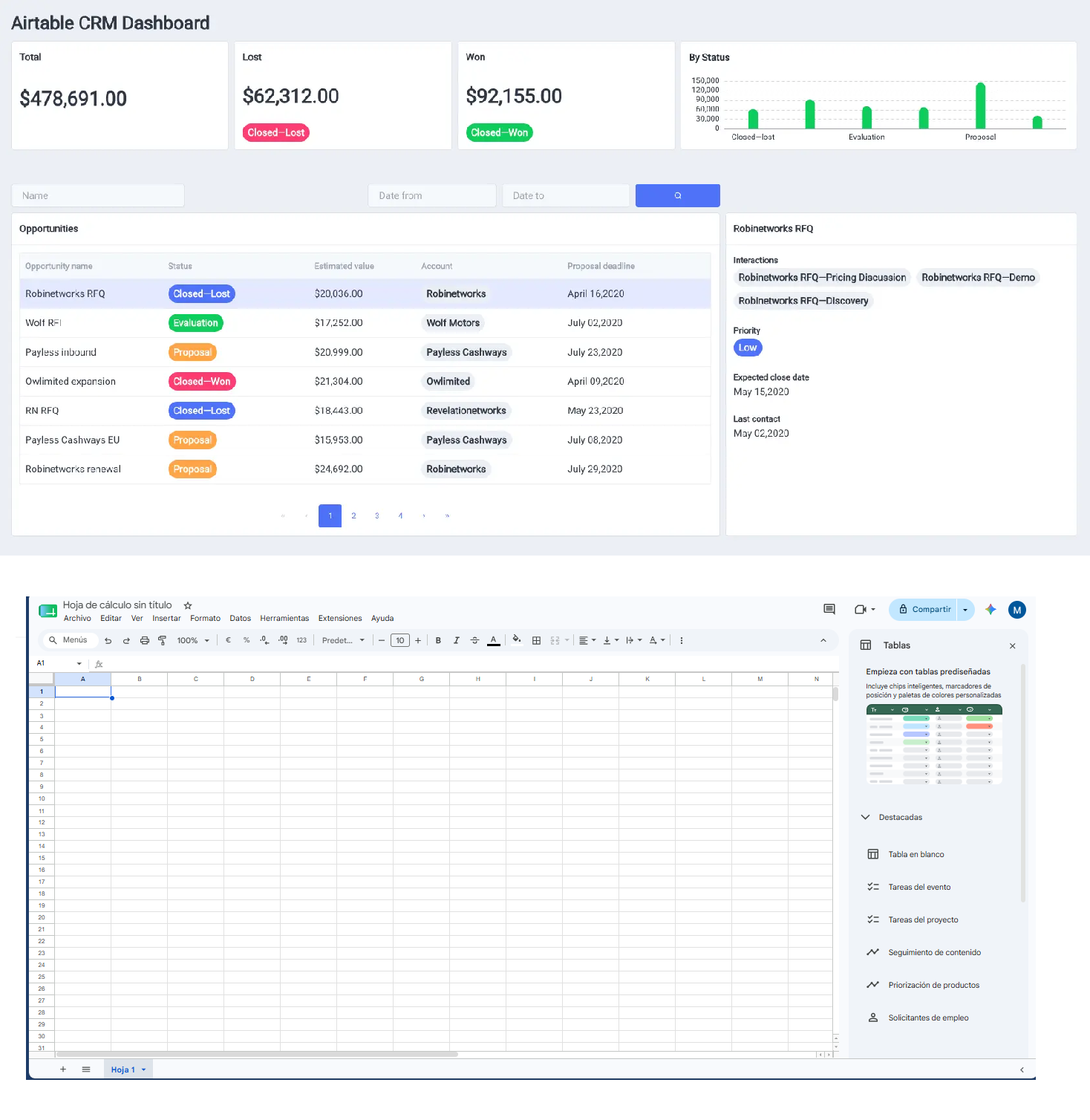
Quick Overview
| Feature | Airtable | Google Sheets |
|---|---|---|
| Data model | Relational database (link tables) | Flat spreadsheet (but can simulate relations with formulas) |
| Field types | Rich: attachments, checkboxes, links, formulas, lookups, rollups | Basic: text, numbers, dates, formulas, data validation |
| Views | Grid, calendar, kanban, gallery, form, timeline, dashboard | Grid only (plus pivot tables, charts) |
| Collaboration | Real‑time, comments, permissions (limited on free) | Excellent real‑time, advanced sharing, revision history |
| Free tier | 1,200 records/base, 2GB attachment space | 15GB storage (shared with Google Drive), unlimited rows |
| Paid plans start at | <$20/seat/month | <$6/user/month (Workspace) |
When to Use Google Sheets
- Complex formulas and calculations – Sheets has powerful functions (QUERY, IMPORTRANGE, FILTER, ARRAYFORMULA).
- Large datasets – Millions of rows (though performance degrades).
- Real‑time collaboration with non‑technical clients – Everyone knows spreadsheets.
- Budget tracking, invoicing logs, time tracking – Simple data that doesn't require relationships.
- Integration with Google Apps Script – Automate with code for free.
When to Use Airtable
- Relational data – Clients → Projects → Invoices. Link records and automatically update rollup fields.
- Multiple views – Kanban for task management, calendar for deadlines, gallery for assets.
- Rich field types – Attach files, use barcode scanners, link to other tables.
- Client‑friendly forms – Share a form view to collect data without exposing your base.
- Built‑in automations – Send emails, create Slack messages, or sync to Google Calendar without code.
Real‑World Example: Freelance Client Management
Scenario: You have 20+ clients, each with multiple projects, invoices, and deliverables.
- Google Sheets approach – One giant sheet with client name repeated for each project. To see all projects for a client, you'd need filters or separate sheets. It works, but it's error‑prone and hard to scale.
- Airtable approach – Three linked tables: Clients, Projects, Invoices. Each project record links to a client; each invoice links to a project. A rollup column can show total invoiced per client automatically. Kanban view for project status, calendar for deadlines.
Verdict: For any relational data, Airtable saves hours and prevents mistakes.
Price Comparison for Freelancers
- Google Sheets – Free with any Google account. Google Workspace (custom domain, more storage) starts at $6/user/month.
- Airtable – Free tier is generous for small bases. Pro plan at $20/seat/month adds advanced features like password‑protected sharing, custom branding, and more automation runs.
Most freelancers can start with the free tier of both. As you grow, you might pay for Airtable (for relational power) and keep Sheets for simple spreadsheets.
Can You Use Both Together?
Absolutely. Use Airtable as your relational database and Google Sheets for reporting, budgets, or data you want to share broadly. Sync data between them using:
- Zapier/Make – When a new record is added in Airtable, create a row in Google Sheets (and vice versa).
- Sheet2Airtable (third‑party tool) – Or use Airtable's "Sync with Google Sheets" (available on paid plans).
- Google Apps Script – Write a script to push data between them for free.
Conclusion – Which One Should You Choose?
Choose Google Sheets if: You need complex formulas, very large datasets, or you're already deeply embedded in Google Workspace. It's also better for simple lists and budgets.
Choose Airtable if: You work with relational data (clients, projects, invoices), need multiple views, or want a database that non‑technical clients can use.
Use both – Airtable as your operational database, Google Sheets for analysis and external sharing.
Try them for free:
Start Airtable free →
Google Sheets (free) →